
Install · First-time setup
First-time setup
Use this after the emulator opens (Install). You will add prod.keys / title.keys, install Switch firmware, then point Ryujinx at game folders. This site centers on Canary; Stable uses the same sequence — see the official docsor Forge wikiif menus differ by version.
This site does not host firmware, keys, or ROMs. Sourcing is between you, your hardware, and the project docs.
Setup walkthrough
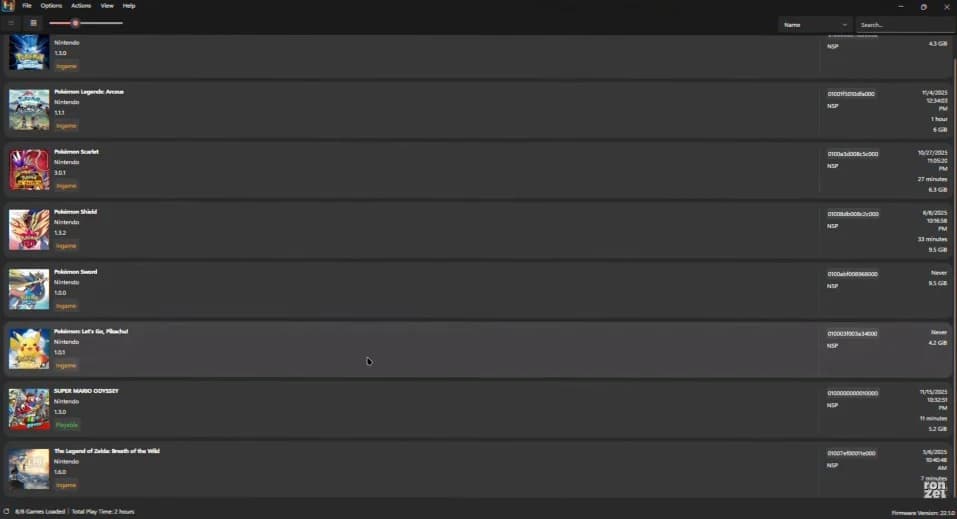
Each step pairs a short instruction with a screenshot. Order is keys → firmware → game folders → launch. For edge cases and paths not shown here, see Extra detail below.
Download Ryujinx from Canary Assets or Stable, extract or install as needed, then run it once.
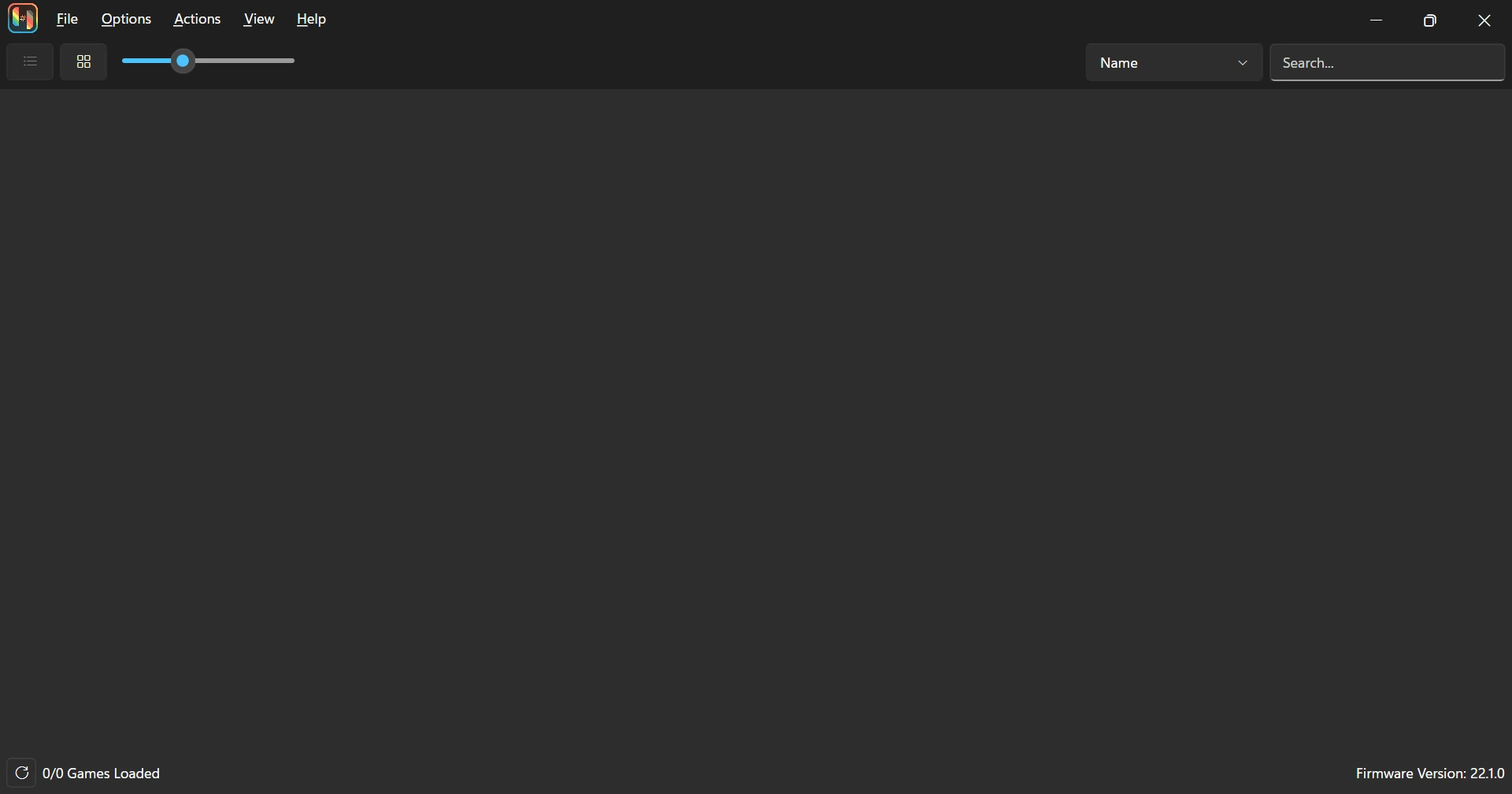
Accept or dismiss any startup prompts. You will configure keys and firmware next.
prod.keys, title.keys)Prefer Actions / Tools → Install keys when your build shows it. Otherwise copy keys into the system folder using File → Open Ryujinx Folder — the screenshot follows this manual path.
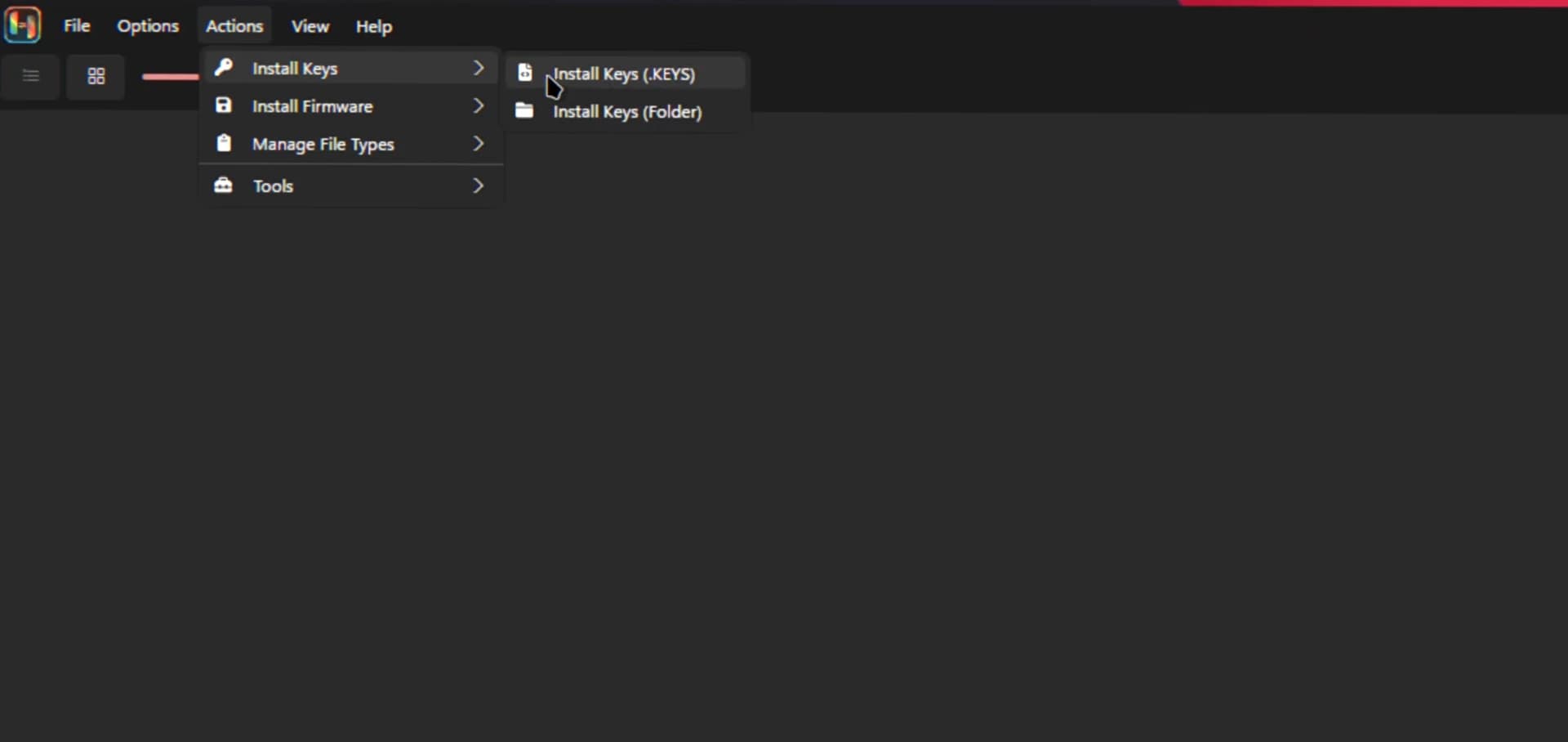
Filenames may differ slightly by dump tool. Restart Ryujinx if key warnings remain — see Extra detail → Keys for paths and extraction notes.
Open Tools / Actions → Install firmware. Pick a .zip, folder, or .xci when the dialog allows.
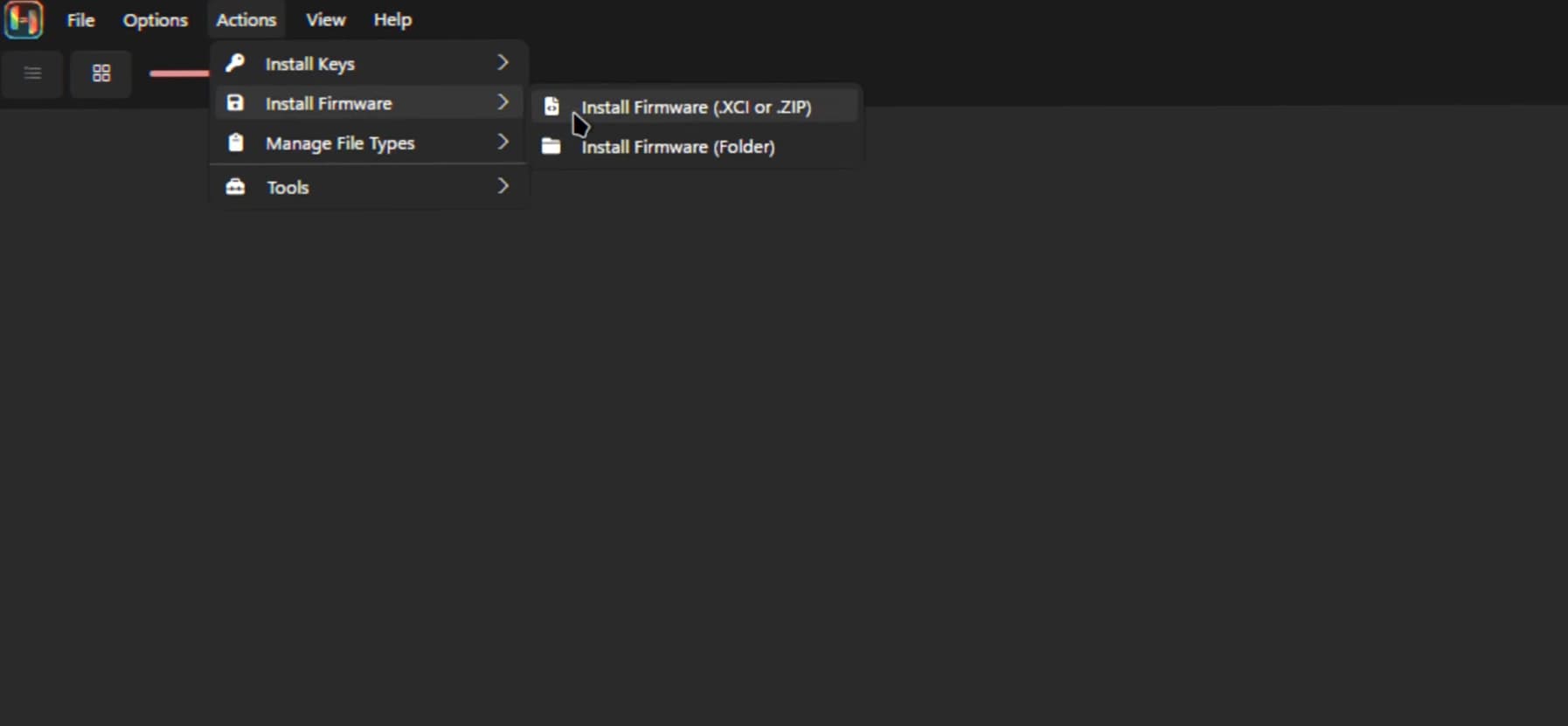
Confirm when finished; restart if Ryujinx still requests firmware.
Go to Options → Settings, open Game directories, then Add folders that contain your dumps (layout varies by version).
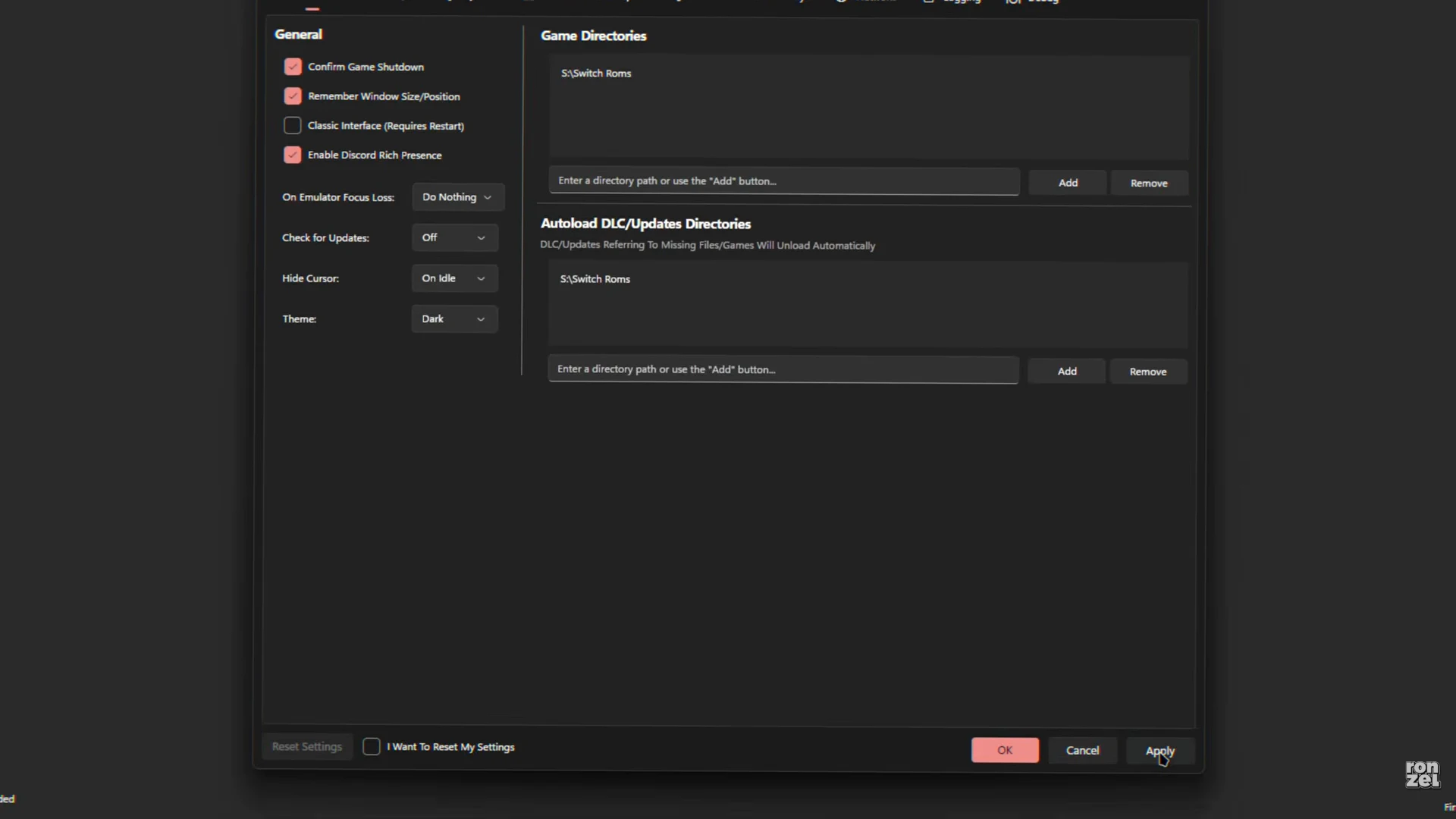
Click Apply, then OK. Optional DLC/update rows appear on some builds — Extra detail → Game directories.
After scanning, titles should appear in the grid — pick one from the list or toolbar.
Steam Deck / Linux handheld: install the x64 Linux Canary asset only (not ARM64). Full notes: Steam Deck / SteamOS.
Preflight (Linux / SteamOS)
If Canary never opens after an old install: quit, rename ~/.config/Ryujinx (e.g. Ryujinx.bak), launch again, then repeat the walkthrough above.
Extra detail
Reference only — the screenshots above are the main path. Use this for paths, alternate menus, and DLC/update rows.
Keys
Keys unlock decryption for firmware and games. Option A: Actions → Install keys or Tools → Install keys when available. Option B: File → Open Ryujinx Folder → system, then copy prod.keys / title.keys. On Windows that is often %AppData%\Roaming\Ryujinx\system. Dumping keys from hardware you own is documented in the official docs.
Firmware
Firmware is the Switch system image Ryujinx installs internally; many titles expect it together with keys. If updates misbehave, restart Ryujinx after the install step.
Game directories
Point Ryujinx at folders containing .nsp, .xci etc. Some builds list separate DLC or update directories — fill those if your UI exposes them. Refresh or restart if nothing appears after Apply / OK. See step 4 for the Settings screen.
Steam Deck / SteamOS
- Install the x64 Linux Canary asset only — not ARM64.
- AppImage:
chmod +xor “allow executing”. Same walkthrough as above for keys, firmware, and directories. - Optional: Add to Steam on the AppImage; in EmuDeck / Steam ROM Manager, set the Ryujinx executable to this Canary AppImage and update when you upgrade the file.
Full Steam Deck install guide → · Troubleshoot → Linux / SteamOS
Common questions
- Canary vs Stable — same setup?
- Yes: keys → firmware → game directories apply to both. This site focuses download links on Canary; pick a Stable tag from Releases if you want fewer breaking updates.
- Keys vs firmware — what is each for?
- Keys satisfy decryption checks; firmware supplies installed system files Ryujinx loads after keys are present. Both sit before picking games in the library.
- Where do keys and firmware files come from?
- Use the official docs and Ryubing wiki for dumps from hardware you own. This site lists steps only.
- Does this site provide keys or firmware downloads?
- No — only Canary/Stable binaries via official release links elsewhere here.